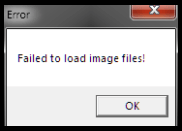
You installed ASUS Smart Gesture on your laptop, and everything went fine. Even the taskbar icon came alive! But then, when you clicked on the icon to configure your gestures and settings, you got greeted by this beautiful little thing:

Worry not, for I’ve got your back! Let’s fix this pesky little issue within a mere period of 5 minutes, shall we?
Step 1: Navigate to the Smart Gesture folder
This is usually either one of these:
C:\Program Files (x86)\ASUS\ASUS Smart Gesture
C:\Program Files\ASUS\ASUS Smart Gesture
You’ll see all the contents, like:
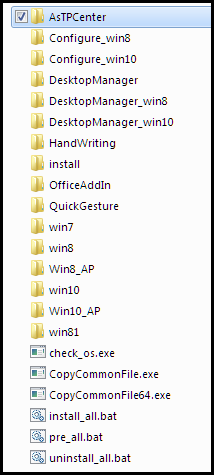
Here, the first folder “AsTPCenter” holds the resources (images and videos) of Smart Gesture:
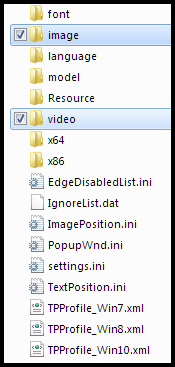
Now, as the error said “Failed to load image files!”, that must mean that these 2 folders might have something either missing, corrupted, or not compatible with your system. So let’s go ahead and fix that.
Step 2: Replace damaged/missing images with new ones
Let’s go back to the main folder of ASUS Smart Gesture, here we have 2 folders named “Configure_win8“ and “Configure_win10“ as shown:
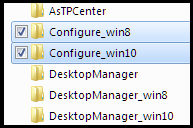
Both of these folders hold the default resources for Smart Gesture, just like we saw in the “AsTPCenter” folder. So first, let’s try the “Configure_win8“ folder to see if it fixes our problem. Enter the folder, and you’ll see these 5 items:
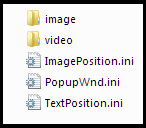
What we’re going to do is copy all these 5 items, and paste it in the “AsTPCenter” folder. When it asks you if you want to replace these files, select yes for everything. You’re done!
Step 3: Test it out and go to Step 3.1 if not fixed
Double-click the ASUS Smart Gesture icon in your taskbar, and it will have either of the below 2 results:
1] Your problem will be completely fixed (If this is the case, then congratulations, you did it!)
OR
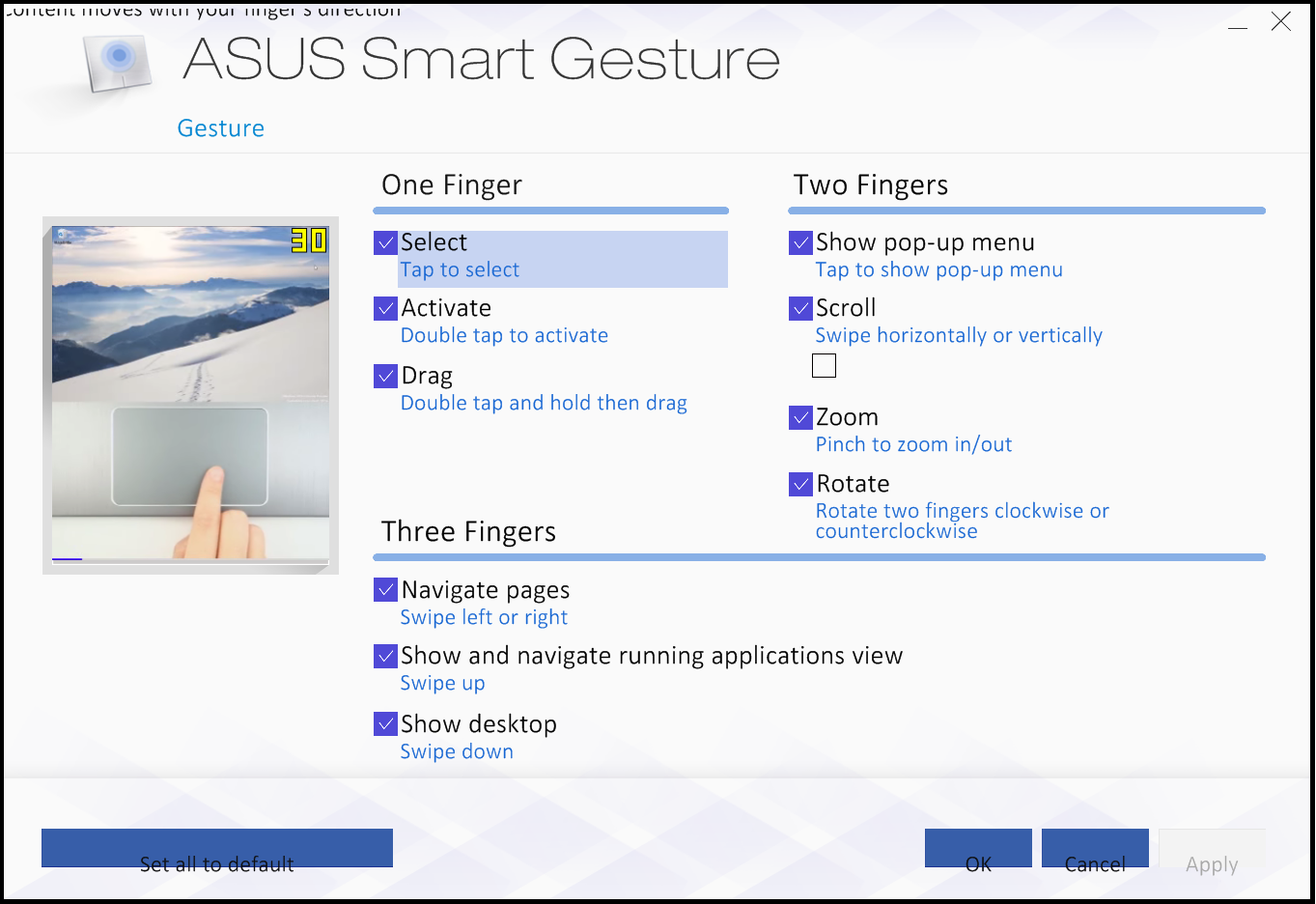
2] The error will be gone but stuff won’t be showing properly in the program, like missing/misaligned buttons, text, checkboxes, etc. like in the below image (If so, then don’t worry, I’ve got you! Look at step 3.1)
Step 3.1: Replace the files from the other folder this time
Remember those 2 folders? “Configure_win8“ and “Configure_win10“? Good.
We copied files from the “Configure_win8“ folder and it did not fix your problem. So now, we’ll copy all the items in the “Configure_win10“ folder into the “AsTPCenter” just like we did before. Again, if it asks to replace, click yes for everything.
Step 3.2: Test it out
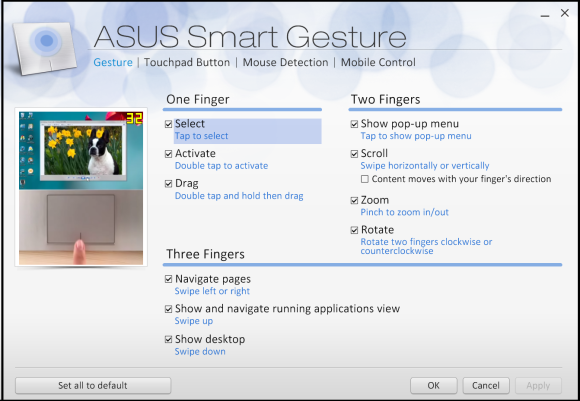
Double-click the ASUS Smart Gesture icon in the taskbar, and it should now work, showing you all the options and images/videos. You—therefore—have now achieved the universe, my good sir. Your Smart Gesture should now look like:
 The Computer Noob
Lovely just what I was searching for.
LikeLike
I could not resist commenting. Well written!
LikeLike
THANKS BROTHER. IT INDEED WORKED
LikeLike
I as well conceive therefore, perfectly composed post! .
LikeLike
Hi there, You’ve done a fantastic job. I’ll definitely digg it and personally recommend to my friends. I’m sure they’ll be benefited from this web site.
LikeLike
Thanks for the new things you have unveiled in your post.
LikeLike
Enjoyed the post.
LikeLike
This is aamazing
LikeLike
thank you
LikeLike
Very good info. Lucky me I came across your website by accident (stumbleupon). I’ve book-marked it for later!
LikeLike
nice
LikeLike
good work
LikeLike
Good Afternoon, I am a PR assistant at xxxxxxxxxxxxxx and I am reaching out to offer you to publish some of our product reviews and guides on your website. We are working hard to grow our brand so we thought that publishing articles on your website would help us to achieve exactly that whilst at the same time contributing unique and interesting content to your website. When I was reviewing your website, I thought that your visitors would enjoy reading articles on these subjects. In writing up our articles, we have chosen the top selling products from our store! All articles are 100 unique and have not been published elsewhere 🙂 I have formatted all the articles and have saved each one inside a Word document. I have also added a folder with our banners that you can use with the blog posts. I have included articles on 1) product reviews and 2) guides. You can find everything inside my Google drive: xxxxxxxxxxxxxxxxxxxxxxx I would be most grateful if you could credit each article to April Lord from xxxxxxxxxx (xxxxxxxxxxxxx) Likewise, if you have some interesting articles, do hit us up on our Facebook page (https://www.facebook.com/xxxxxxxxx/) and we could publish those for you 🙂 Thanks for your time and have a fab day! Kind regards, April Lord
[[URLs redacted AF, keep your spam to yourself]]
LikeLike
LIT
LikeLike
it’s work, thanks dude
LikeLike
Does this work on Windows 10 as well?
LikeLike
What up, —! Yes, it does work on Windows 10.
LikeLike
Ahaa, its pleasant discussion on the topic, I have read all that, so at this time me also commenting here.
LikeLike
fixed it thank you
LikeLike
Lovely 🙂
LikeLike
Very nice. Expert you are, at this!
LikeLike
Undoubtedly, awesome alternative.
LikeLike
WONDERFUL Post.thanks for share..more wait .. …
LikeLike
I actually recognize your content. The article has really peaks my interest. I am going to bookmark your website and hold checking for new information.
LikeLike
Some genuinely nice stuff on this web site, I love it.
LikeLike
wohh precisely what I was looking for, regards for posting
LikeLike
Lovely just what I was looking for.
LikeLike
I am delighted that I detected this site, just the right information that I was looking for! .
LikeLike
I view something genuinely special in this internet site.
LikeLike
thanks!!
LikeLike
FUCKING EXCELLENT
LikeLike
After reading your post, you have a great website with interesting content. But I think you can improve your current google ranks by using SEO website traffic net. My friend uses it and it works great. Just google it, it’s very nice tool to bring you a lot of new readers on a daily basis. Keep up the quality work!
LikeLike
yay google is my world because it helped me to find this great website ! .
LikeLike
Terima Kasih atas informasinya gan… sukses selalu
LikeLike
After 3 hours of internet search… This was instantly the perfect solution to my problem! Thank you so very much for this comprehensive, very well written guide.
Cheers!
LikeLike
I’m really impressed with your writing skills as well as with the layout on your weblog. Is this a paid theme or did you customize it yourself? Anyway keep up the nice quality writing, it is rare to get a nice blog like this one today..
LikeLike
You’re a life saver… Just thank you. I have been pulling my hair out over this for days now and couldn’t find anything on the internet except this, and it worked!
Thanks,
Preston
LikeLike
fantastic stuff! thanks!!!
LikeLike
thaskas Dude Its work
LikeLike